
PowerPoint → Interactive SCORM Course
Upload your PowerPoint presentation, add interactive elements, activities and quizzes — and get a ready-to-use SCORM course for your LMS.
No installation. No registration. Free.
- PPTX
- Interactivity
- SCORM
- LMS
No presentation at hand? Open a sample: its slides already have buttons, popups and tasks of every type.
By using the tools, you agree to the Terms of Use and the Privacy Policy.
How to Convert PowerPoint to SCORM
1. Upload your PPTX
Upload a finished PowerPoint presentation.2. Add interactivity
Add buttons, clickable areas, pop-ups and other interactive elements.3. Add activities
Create activities and questions, set the number of attempts and the passing score.4. Export SCORM
Get a ready SCORM 1.2 or SCORM 2004 package and upload it to your LMS.
Turn an ordinary presentation into an interactive course
Buttons
Add buttons and define what happens when they are clicked.Interactive areas
Make individual elements on a slide clickable.Pop-ups
Show additional information without leaving the slide.Activities
Add activities right in the presentation: matching, drag and drop, “Find on slide”.Quizzes
Check knowledge, set attempts and passing scores.SCORM
Export your course as SCORM 1.2 or SCORM 2004.
Who is Brusnika Interactive for?
Instructional designers
Turn existing presentations into interactive eLearning courses.Corporate academies
Create SCORM courses from existing training materials.Teachers and subject matter experts
Turn lectures and presentations into interactive learning materials.Online course creators
Create SCORM courses without complex authoring software.
A Free Alternative to iSpring Suite and Articulate
Upload your PowerPoint, add interactivity and activities, and export the finished course as SCORM.
Brusnika Interactive is not yet a complete replacement for iSpring Suite or Articulate Storyline. Professional authoring tools offer many more advanced capabilities.
But if your task is simple:
“I have a PowerPoint presentation. I need to quickly turn it into an interactive SCORM course.”
— Brusnika Interactive lets you do it for free.
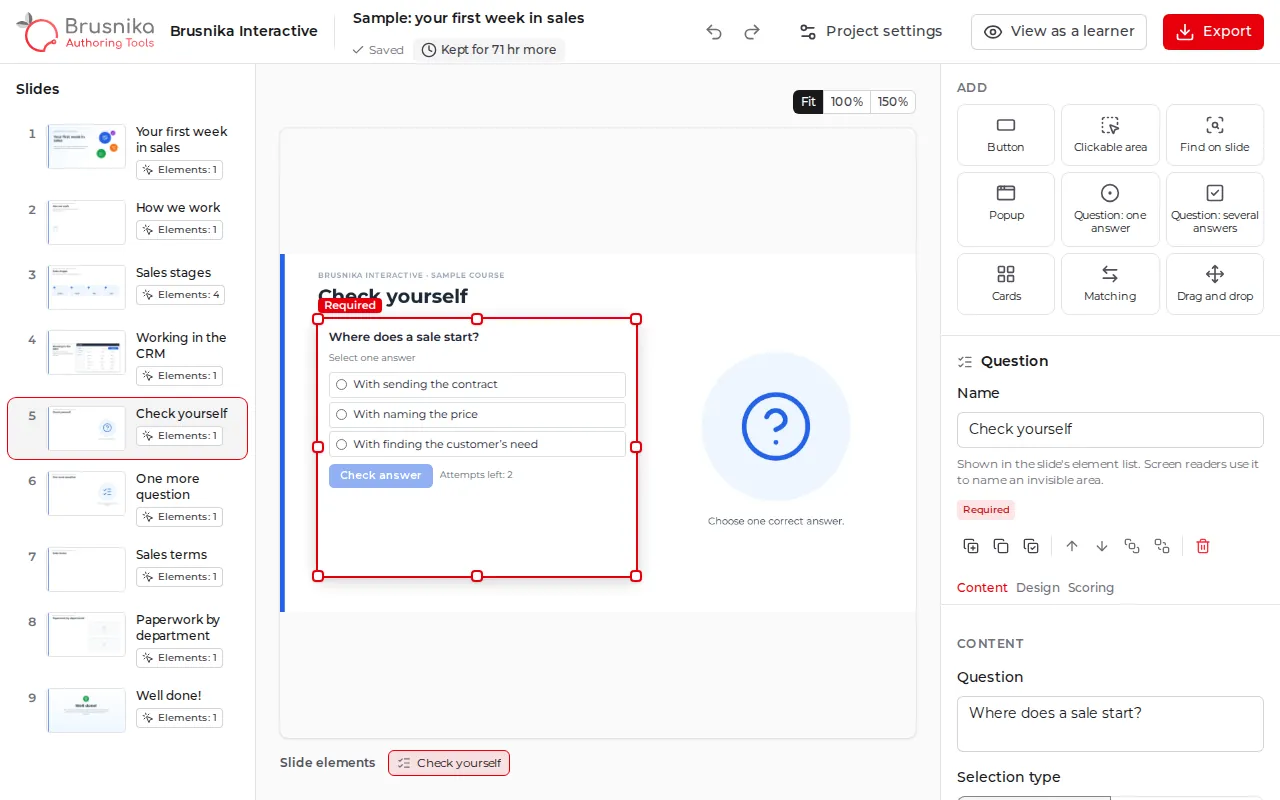
PowerPoint to SCORM — with interactivity
This is useful when your training materials already exist in PowerPoint but need to be used inside an LMS with learner tracking.
Supported:
- PowerPoint PPTX
- SCORM 1.2
- SCORM 2004
- interactive buttons
- pop-ups
- interactive activities
- knowledge checks
You don’t have to build the course from scratch — use your existing presentation as the starting point.
Need a course without activities — just slides, video and navigation? The free PPT → SCORM converter makes one in a couple of minutes.
Why use complex authoring software if you already have PowerPoint?
A subject matter expert creates the presentation. An instructional designer adds the learning content. Then comes the challenge: turn the presentation into a real eLearning course.
You don’t always need complex authoring software for that.
Brusnika Interactive uses PowerPoint as the foundation and adds interactivity, activities and SCORM export.
PowerPoint remains the foundation. Brusnika adds the interactivity.
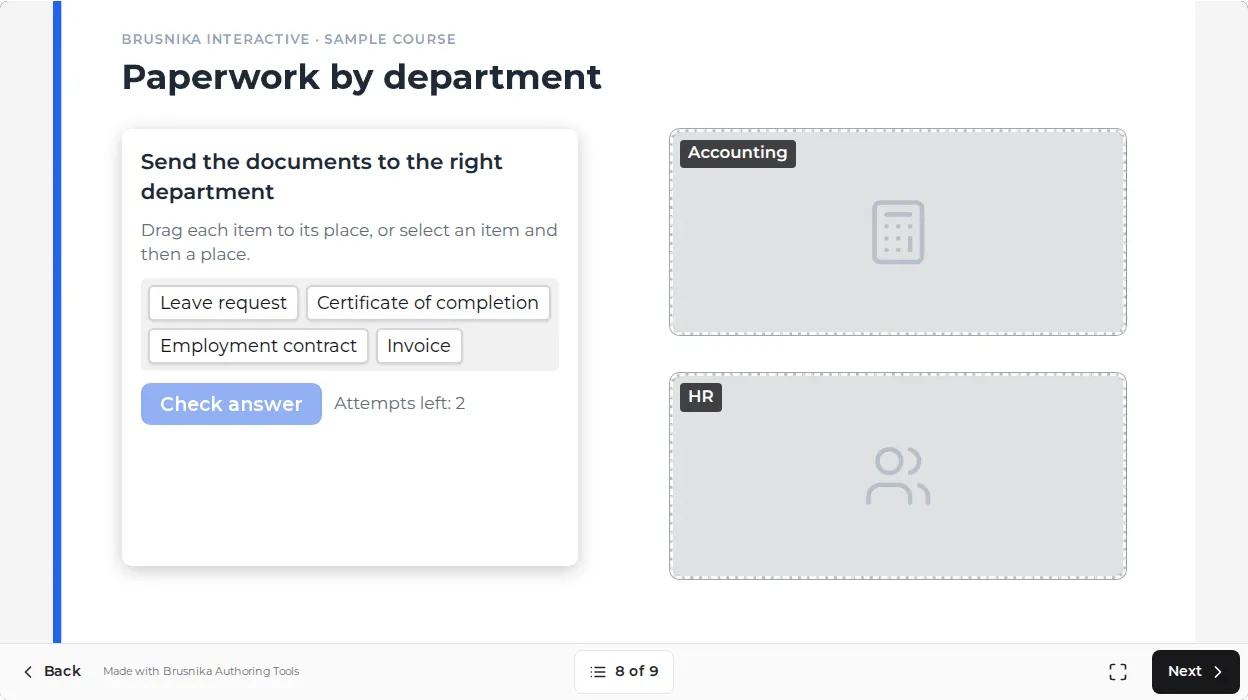
Brusnika Interactive vs. professional authoring tools
| Feature | Brusnika Interactive | iSpring / Articulate |
|---|---|---|
| PowerPoint → SCORM | Yes | Yes |
| Interactive buttons | Yes | Yes |
| Pop-ups | Yes | Yes |
| Interactive activities | Yes | Yes |
| Quizzes | Yes | Yes |
| SCORM 1.2 | Yes | Yes |
| SCORM 2004 | Yes | Yes |
| Complex logic and scenarios | No | Yes |
| Advanced animation | No | Yes |
| Large set of authoring features | No | Yes |
| Price | Free | Paid |
How to prepare your presentation
Save as PPTX
Save older PPT files, as well as Keynote and Google Slides decks, as PPTX first.Leave room for tasks
Buttons, questions and popups sit on top of the slide. Keep a free corner or strip for them — or make a separate slide with just a heading.Animations show their end state
Animations and transitions aren’t carried over: each slide appears as it looks after all its animations.Video as an MP4 file
Insert video into the slide as a file, not a link. Audio should be MP3 or M4A — WAV isn’t carried over.Embed your fonts
In PowerPoint: File → Options → Save → Embed fonts in the file. Otherwise a rare font is replaced with a similar one.Use 16:9 slides
Widescreen slides look better both on a monitor and on a phone turned sideways.
Need to train your employees?
- AssignmentsAssign the course to employees and groups with deadlines.
- ProgressSee who has started, finished or got stuck.
- ReportsTest results and completion in reports.
Create for free. Train in Brusnika.LMS.
Frequently asked questions
Try it for free
No installation. No registration. Free.